

Want a block of text to appear in several places at once? Below is a walkthrough for showing a page’s body inside some other entry, be it a post, a page or a custom type.
Start by installing the Insert Pages plugin and activating it. Once it is active, open the screen for writing a new post (Posts » Add New) to try it out.
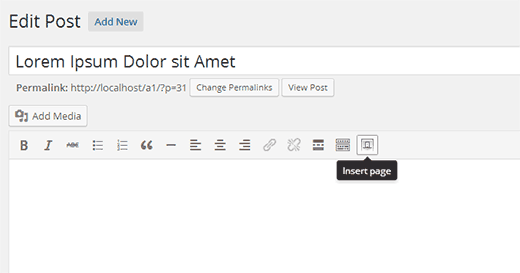
In the visual editor, the plugin places an extra button in the toolbar, called ‘Insert Page’.
A dialog box shows up after a click. Use it to choose whichever entry should be embedded.
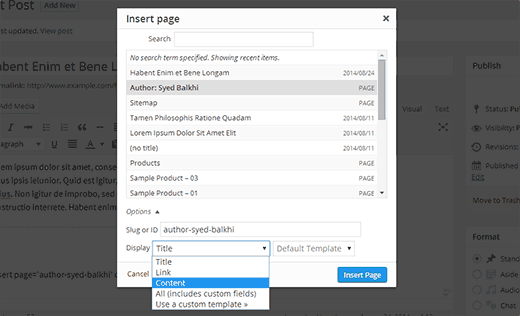
The Options link decides what readers will see. Four modes exist by default: title only, full content, a plain link, or a template of your own (explained in a later section).
With an item selected, press Insert Page. A shortcode then appears in your post, and that shortcode is what displays the selected item.
Writing in the text editor instead? Then type the shortcode by hand. It takes only two parameters:
[insert page='page-slug|ID' display='title|link|content|all|custom-template.php']
Its first value names what to embed, either by slug or by number. That slug may belong to any kind of entry, regular blog posts and custom types included, so the label is a little misleading.
Numeric IDs are accepted as well. If you are not sure where to look, see how to look up a post’s ID.
 [insert page='author-jane-doe' display='content']
 [insert page='128' display='content']
 [insert page='128' display='all']
 [insert page='128' display='custom-author.php']
Placing Custom Post Types Inside Posts
WordPress can hold many kinds of content, each kept in its own set of post types. To learn more, read about when a custom post type makes sense and how to set up a custom post type in WordPress.
This plugin handles custom types just as well as standard ones. Picture a dedicated “gallery” type holding photo collections; every one of those collections becomes embeddable wherever it is needed.
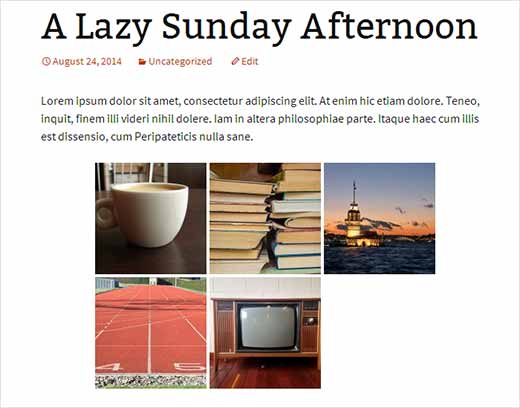
The same approach suits videos, portfolio items, client testimonials and other content kept in a custom post type.
Showing Inserted Pages with a Custom Template
The built-in display choices are the title, the link, the content, or everything at once. When none of those fits your layout, a custom template gives you full control.
Setup is short: save a new, empty .php file inside the active theme. Name it freely; custom-author.php is one example.
WordPress treats it like every other theme template that renders content. A good case for one is a layout built around author profiles.
Markup in that file can carry its own class names, which the theme stylesheet can then target. Here is a set of rules aimed at an author profile layout.
h3.author-name {
font-size:16px;
}
.author-thumbnail {
float:left;
padding:10px;
}
.author-bio {
font-style:italic;
font-family: Lora, Georgia, Serif;
}
With those styles in place, an inserted author page can look like this:

With this plugin, reusing existing material across your site takes just a shortcode.